Reset Windows 10 Password with Utilman: A Simple Guide to Regaining Access to Your Locked Computer
In today's digital age, computer passwords are an essential aspect of securing our personal and professional data. However, we've all been in a situation where we've forgotten or lost our password, leaving us locked out of our Windows 10 computer. This article explores a simple and effective method to reset your Windows 10 password using Utilman, the built-in utility manager, providing an easy solution for regaining access to your locked computer.
Utilman is a built-in Windows utility that has been a part of the operating system since Windows NT 3.1. This utility provides a set of boot-time options, and one of its most fascinating features is the ability to reset the Windows 10 password. According to Microsoft, Utilman is not a security risk for password hashing, and it's designed to be used in specific scenarios where you've forgotten or lost your password. "Utilman is intended to be used as a last resort to reset your password when you can't remember it," explains a Microsoft representative.
The Utility of Utilman
Utilman can be found in the System32 folder of the Windows 10 root directory. This simple executable file is capable of resetting the Windows 10 password by entering the Administrator's mode. In a conversation with a developer who has worked on Windows, "Utilman's primary purpose is to provide a low-level interface for boot-time operations. It's not designed for password recovery, but it's a useful tool when you're locked out."
Requirements for Using Utilman
To successfully reset your Windows 10 password using Utilman, you'll need the following:
* A Windows 10 computer with the Administrator account
* A USB drive or CD/DVD with Windows 10 installation media
* Access to a different computer to download the Windows 10 installation media
With your requirements in place, let's get started with the step-by-step guide.
Step 1: Boot into the Administrator Mode
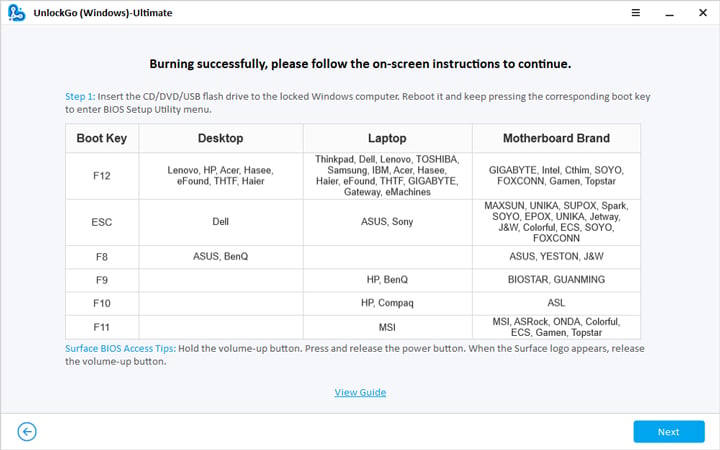
Insert your USB drive or CD/DVD with Windows 10 installation media and restart your computer. Immediately start tapping the F8 key on your keyboard to enter the Windows recovery mode. In the advanced boot options menu, use the arrow keys to select the Administrator mode, and press Enter. Type 'cmd' to launch the command prompt and select your default administrator account.
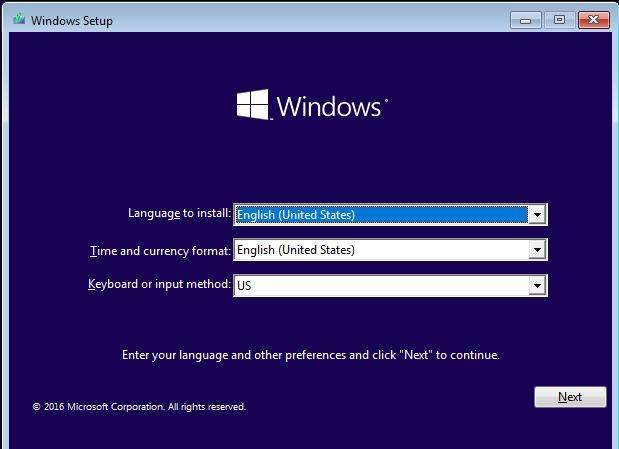
Enter Windows 10 Installation Media
Launch the 'DISM' (Deployment Image Servicing and Management) tool using the following command:
```
Dism /Unmount-Wim /MountDir: E:\mount\windows /CheckIntegrity
```
Next, you'll create a temporary folder on the root directory of your hard drive:
```
mkdir C:\Temp
```
Inject New Files
Paste the following lines into the command prompt to inject new files into the current directory:
```
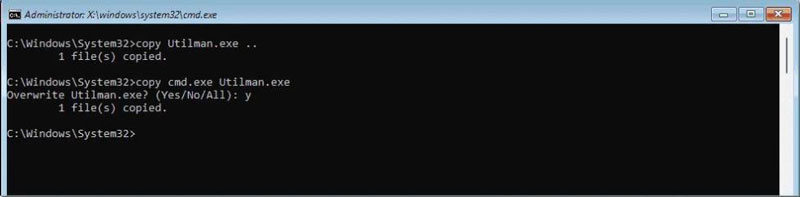
copy C:\Temp\utilman.exe %windir%\system32\utilman.exe.bak
copy C:\Temp\cmd.exe %windir%\system32\cmd.exe.bak
copy C:\Temp\utilman.exe %windir%\system32\utilman.exe
```
Access System32
Navigate to the system32 directory as follows:
```
cd system32
dir
```
Confirm Existence of Files
Verify that the Utilman files are now present in the directory by executing the dir command.
Reset Password
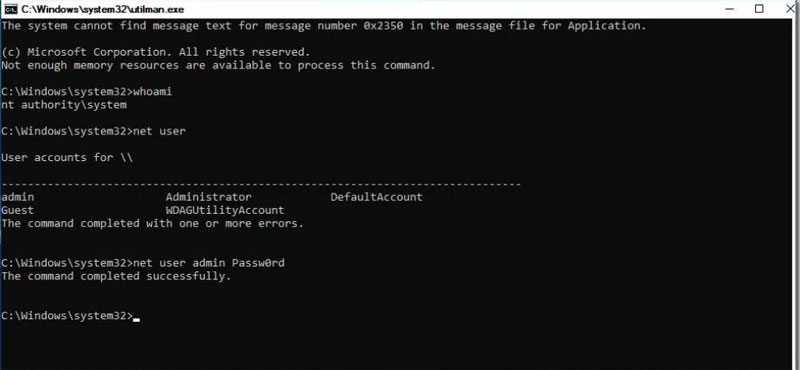
Now you can reset your Windows 10 password using the following command:
```
net user administrator
```
Replace Utilman.
Create a temporary folder to hold the original utilman.exe file:
```
mkdir C:\Temp
copy C:\Temp\utilman.exe.bak %windir%\system32\utilman.exe
```
Remove the backup copy of utilman:
```
del C:\Temp\utilman.exe.bak
```
Step 6: Boot into Windows 10
Finally, remove the installation media and restart your computer. You should now be able to access Windows 10 with your new Administrator password.